Customer Follow-Up for Independent Consultants: Managing Promises and Delivery
Learn how independent consultants can master customer follow-up by separating external client commitments from daily internal task lists.
Customer follow-up for independent consultants succeeds when you separate the promise made to a client from your internal to-do list. When client requests get buried in email threads or fragmented across note apps, follow-up stalls because the original context—what was promised, who asked, and what outcome was expected—is separated from the work itself.
For low-volume days or a single advisory engagement, flagging an email or jotting a quick reminder in a paper notebook can be sufficient. However, this informal approach breaks down as soon as multiple client questions arrive across different channels while you are focused on billable project work.

Separating Client Promises from Internal Tasks
Your internal task list tracks actions you take, such as reviewing data, rewriting a clause, or running calculations. A customer request tracks an open agreement with a client who is waiting for an answer, a deliverable, or a status update.
Conflating the two creates blind spots. Checking off an internal task like 'review proposal section 3' does not mean the client received the clarity they requested, leading to missed updates and unnecessary client friction.
A Four-Step Follow-Up Framework
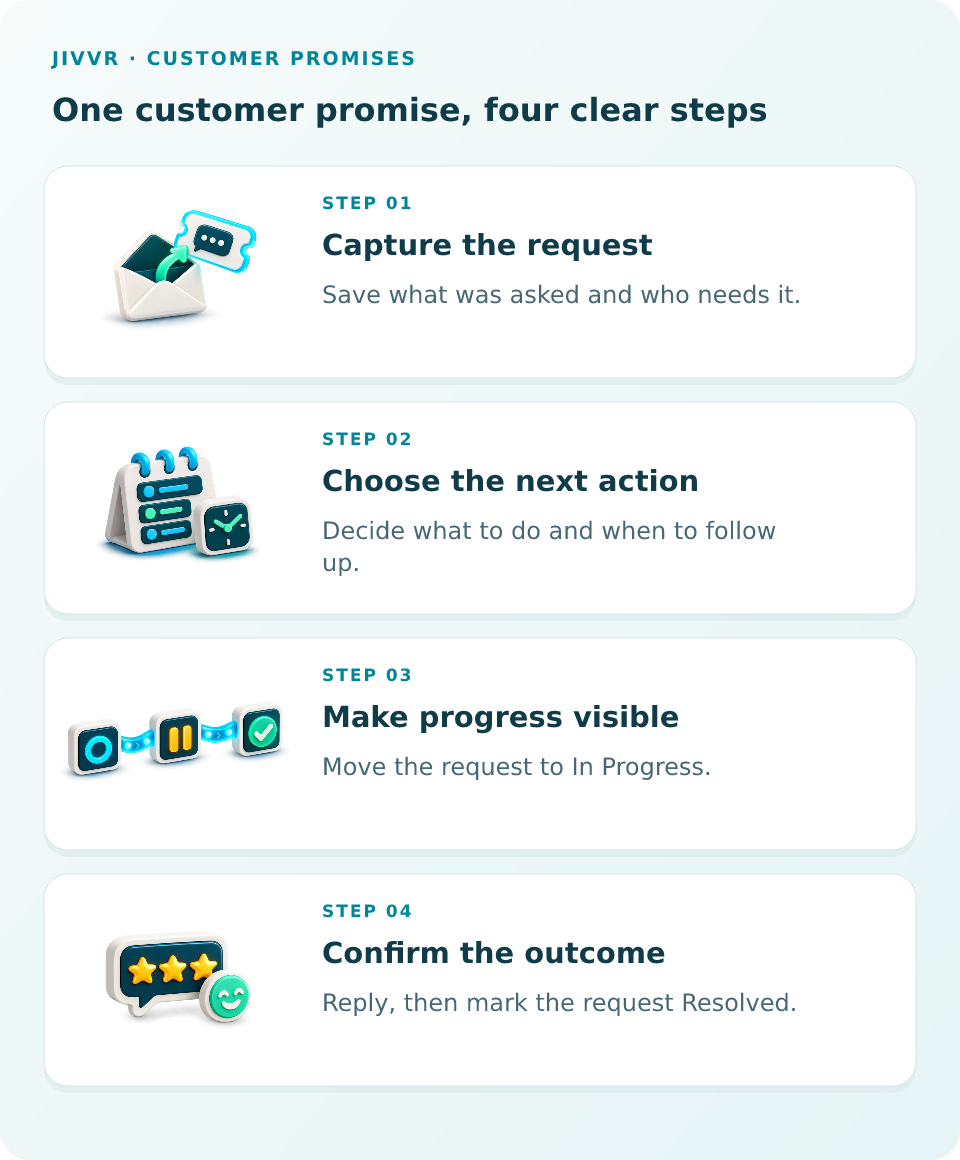
- Capture the request: Save what was asked and who needs it so the commitment has a clear record.
- Choose the next action: Decide what internal work is needed and determine when to provide an update.
- Make progress visible: Mark the request as In Progress so you immediately know it is active and not overlooked.
- Confirm the outcome: Deliver the answer to the client and mark the request Resolved.
Worked Example: Clarify the Next Proposal Milestone
Consider an illustrative example with Alex Demo at Juniper Advisory Demo. A client, Casey Example, submits an inquiry: 'Clarify the next proposal milestone'. The details state: 'Confirm the next deliverable in the proposal and reply when it is documented.'
This request is not an immediate emergency, but leaving it unanswered slows down contract approval. Alex assigns the request Medium urgency and captures it directly in Jivvr's New Ticket form using the title and description.
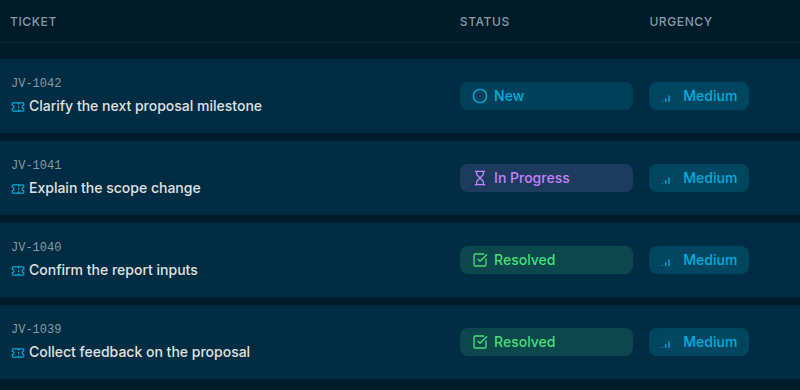
Once saved, the request appears in the central ticket workspace alongside other open client inquiries like 'Explain the scope change' and 'Confirm the report inputs'. With status set to New, it stays visible instead of getting lost in inbox archives.
Updating Status and Closing the Loop
When Alex starts reviewing the proposal document, opening the ticket in Jivvr allows changing its status to In Progress. This visual indicator confirms that work is actively underway, even if phone calls or meetings interrupt the day.
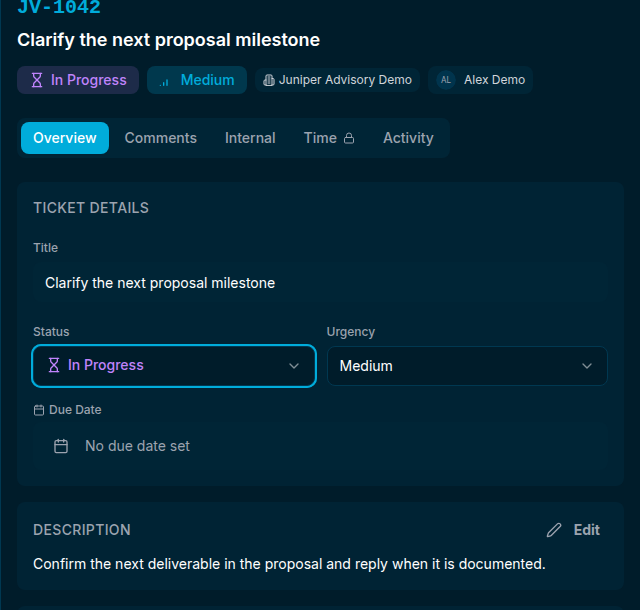
After updating the proposal, Alex opens the ticket detail panel to add a comment and set the status to Resolved. Note that recording an internal comment in the panel is distinct from sending an email; direct delivery requires a configured recipient and selecting the send option. Alex's reply reads: 'Hi Casey, the next deliverable is documented in the proposal. Please check the description and let me know if anything needs clarification.'
Planning a follow-up action remains an intentional consulting habit. Tracking the request records what was asked and its current status, but choosing the right next step and communicating clearly with your client remains your professional responsibility.
Customer Follow-Up for Independent Consultants: Managing Promises and Delivery — walkthrough
A customer asks for a small change, then another call interrupts your day. The request slips down your inbox, and the customer is left waiting for an update. Let’s follow a proposal question in Jivvr, from the original request to a completed task, with the next step and customer follow-up kept together. Open the matching request in the ticket list and read the description, so you understand the customer’s question about the next proposal milestone before you start working. Choose In Progress in the Status menu when you begin the work, so you can quickly see which requests are already being handled. After completing the work, open Comments and write a concrete update explaining the outcome and what the customer should check next. Choose Add Comment and check that the update appears in the conversation, keeping the result beside the original request rather than only in your memory. Return to Overview and choose Resolved when the request has been handled, so a later review can distinguish this work from requests still in progress. Check the saved status and the comment together, then decide whether a separate customer message or another follow-up is needed for this particular request. A finished task still needs a clear customer update. Before moving on, check that the customer knows what changed and whether you need anything else from them. Start with one real request in your own workspace, keep its next action clear, and close the loop with the customer when the work is complete.