Handing Over Customer Requests in a Small Team Without Losing Context
Learn how small teams hand over customer requests cleanly by separating client commitments from internal tasks, keeping status clear and follow-ups on time.
Handing over a customer request across a small team requires separating the outward promise made to the client from the internal tasks needed to fulfil it. When team members share an inbox or pass work between shifts, handovers fail if nobody knows who currently owns the request, what stage it is in, or when the client expects an answer.

When a Shared Inbox or To-Do List Falls Short
If you are a solo operator dealing with ten messages a day, keeping customer notes in an email folder or a personal notepad works reasonably well. You hold the full context in your head, so you know whether a forwarded note still needs a reply.
Once two or three people answer incoming messages, private lists break down. Marking an email unread does not tell a colleague whether you started working on it, and personal task managers hide client commitments from the rest of the business.
Separate the Promise from Your Task List
A customer request represents an outward commitment: what was agreed, who asked for it, and what outcome they expect. An internal action item is simply one step required to deliver that outcome.
| Attribute | Customer Request | Internal Action Item |
|---|---|---|
| Primary Audience | The client expecting an outcome | The team member doing the legwork |
| Core Question | What did we promise and who owns the reply? | What specific operational step happens next? |
| Visibility | Shared across the entire service team | Individual desk, checklist, or operational tool |
| Resolution State | Completed only when the customer receives confirmation | Done when the back-office check is finished |
The Four-Step Handover Framework
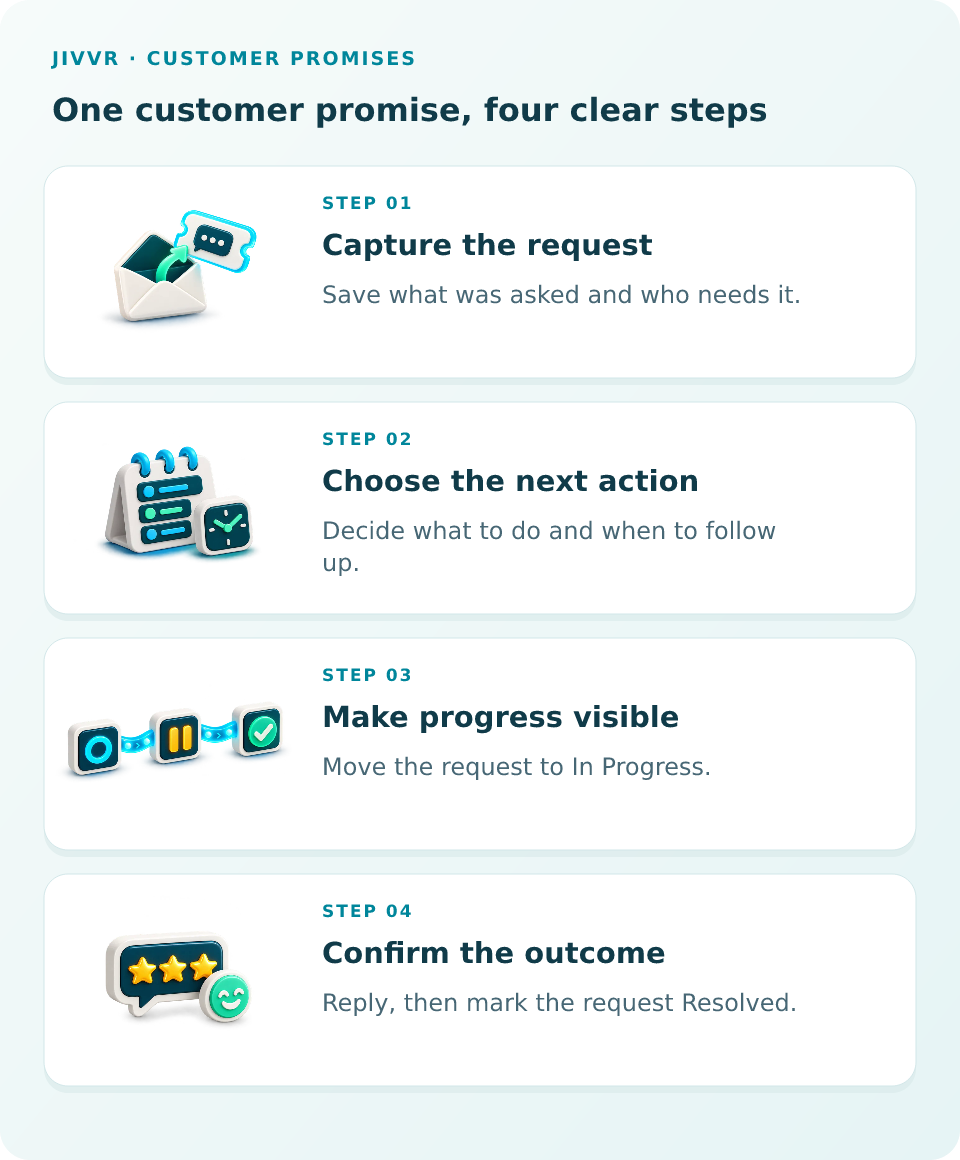
- Capture the request: Record what was asked and who needs the update so the item exists independently of any single inbox.
- Choose the next action: Agree on what must happen next and who handles it, keeping operational sub-steps clear.
- Make progress visible: Update the stage so colleagues can see someone has taken responsibility and work is actively underway.
- Confirm the outcome: Communicate the final answer back to the customer before closing out the request.
Worked Example: Confirming Delivery Instructions
Consider an illustrative scenario at Juniper Services Demo. Jane Example contacts the business with a straightforward request: "Confirm the delivery instructions". The goal is to check the agreed instructions and confirm them before the delivery takes place. This is not an emergency, so it carries Medium urgency.
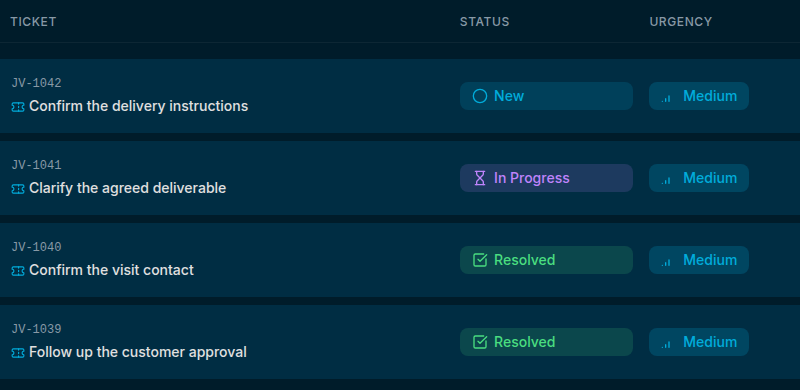
Sarah Demo captures the request using the New Ticket form, entering the title and description. In Jivvr, the saved request appears in the shared ticket workspace where team members can see its status, urgency, and current assignee.
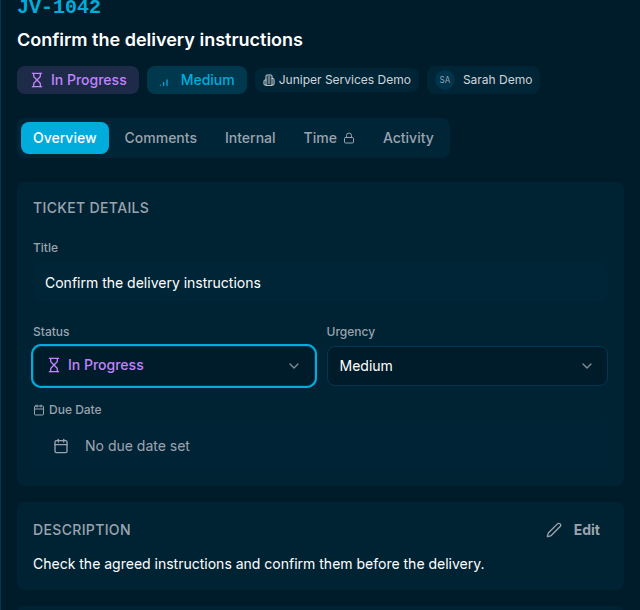
When Sarah opens the request in the ticket detail panel, she moves the status from New to In Progress. This informs her teammates that the delivery details are being reviewed. Once she verifies the file, she adds a comment and sends her response: "Hi Jane, the instructions are confirmed. Please let me know if anything needs changing before delivery." After updating the customer, she moves the status to Resolved.
Note on communications: Recording a comment inside Jivvr's ticket detail panel updates internal records, but outward email delivery to the requester requires a configured recipient and using the send option.
How do solo operators adapt this handover process?
A solo operator acts as both sender and receiver across different days. Marking an item as In Progress stops you from wondering whether you already started reviewing files when interruptions pull you away.
What if an urgent request interrupts an in-progress handover?
Keep the existing request marked In Progress with clear notes on what was completed so far. A colleague can pick up the remaining step without having to start over or question the customer again.
When should a customer request be marked as resolved?
Mark the request as Resolved only after confirming the outcome with the customer. Completing an internal task is not the finish line; the request stays open until the customer has received their answer.
Handing Over Customer Requests in a Small Team Without Losing Context — walkthrough
A customer asks for a small change, then another call interrupts your day. The request slips down your inbox, and the customer is left waiting for an update. Let’s follow a delivery request in Jivvr, from the original request to a completed task, with the next step and customer follow-up kept together. Open the matching request in the ticket list and read the description, so you understand the customer’s request to confirm the delivery instructions before you start working. Choose In Progress in the Status menu when you begin the work, so you can quickly see which requests are already being handled. After completing the work, open Comments and write a concrete update explaining the outcome and what the customer should check next. Choose Add Comment and check that the update appears in the conversation, keeping the result beside the original request rather than only in your memory. Return to Overview and choose Resolved when the request has been handled, so a later review can distinguish this work from requests still in progress. Check the saved status and the comment together, then decide whether a separate customer message or another follow-up is needed for this particular request. A finished task still needs a clear customer update. Before moving on, check that the customer knows what changed and whether you need anything else from them. Start with one real request in your own workspace, keep its next action clear, and close the loop with the customer when the work is complete.